Host a Minecraft server at home on Windows, macOS, or Linux
Any computer that can run Docker can host your servers. Install the panel, keep it private, open only the game port, and your friends can join from anywhere.
 Windows
- macOS
- Linux
- Docker
- Node.js 24+
Two Ways to Install
On a Linux machine, the one-line installer does everything: it installs Docker if it is missing, runs the panel as a container, and starts it again after a reboot. On Windows and macOS, run the panel directly with Node.js 24 next to Docker Desktop. The panel prints a clear message and stops if your Node.js is too old, and if Docker is not running yet you still get the full panel; servers start as soon as Docker is up.
- Linux: the installer, or the compose file in Portainer or Dockge.
- Windows: Docker Desktop with the WSL2 backend, then the panel from source.
- macOS: Docker Desktop, then the panel from source.
- Under PM2 or systemd, the panel survives reboots.
- Linux
- Docker
- Windows
- macOS
- Node.js 24+
Keep the Panel Private
Players never talk to the panel. They connect to the game port. A fresh install from source answers only on the machine it runs on, at localhost port 25564. To reach it from another computer in your home, set it to listen on your network; setup then asks for a one-time PIN, so a stranger who reaches the port first cannot claim the admin account. Never forward the panel's port to the internet. To manage servers away from home, use a VPN, an SSH tunnel, or a reverse proxy with TLS.
- Localhost only out of the box.
- A setup PIN when the panel is reachable from the network.
- Two-factor authentication for every account.
Let Friends Join
Each server gets a game port, starting at 25565 and counting up. On your router, forward that port, over both TCP and UDP, to the computer running the servers. Leave the remote console ports, 1000 above each game port, closed: the panel reaches them from inside the container and never needs them open. Give players a hostname you control instead of your home address, so a change of address is a DNS change and not a message to every player.
- Forward game ports only, TCP and UDP.
- Keep RCON and the panel port closed.
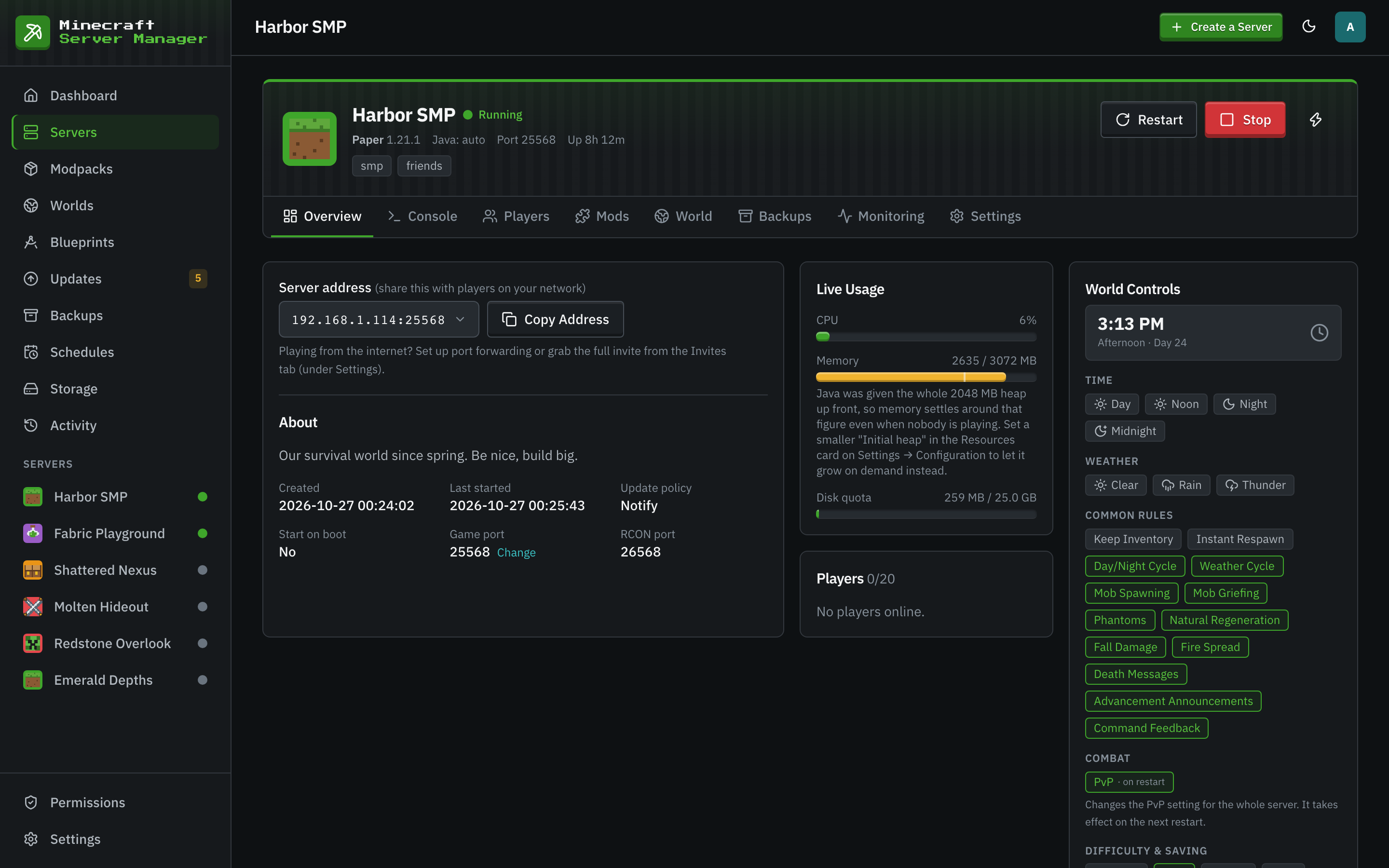
- The Overview tab shows the address to share.
Make It Behave Like a Server
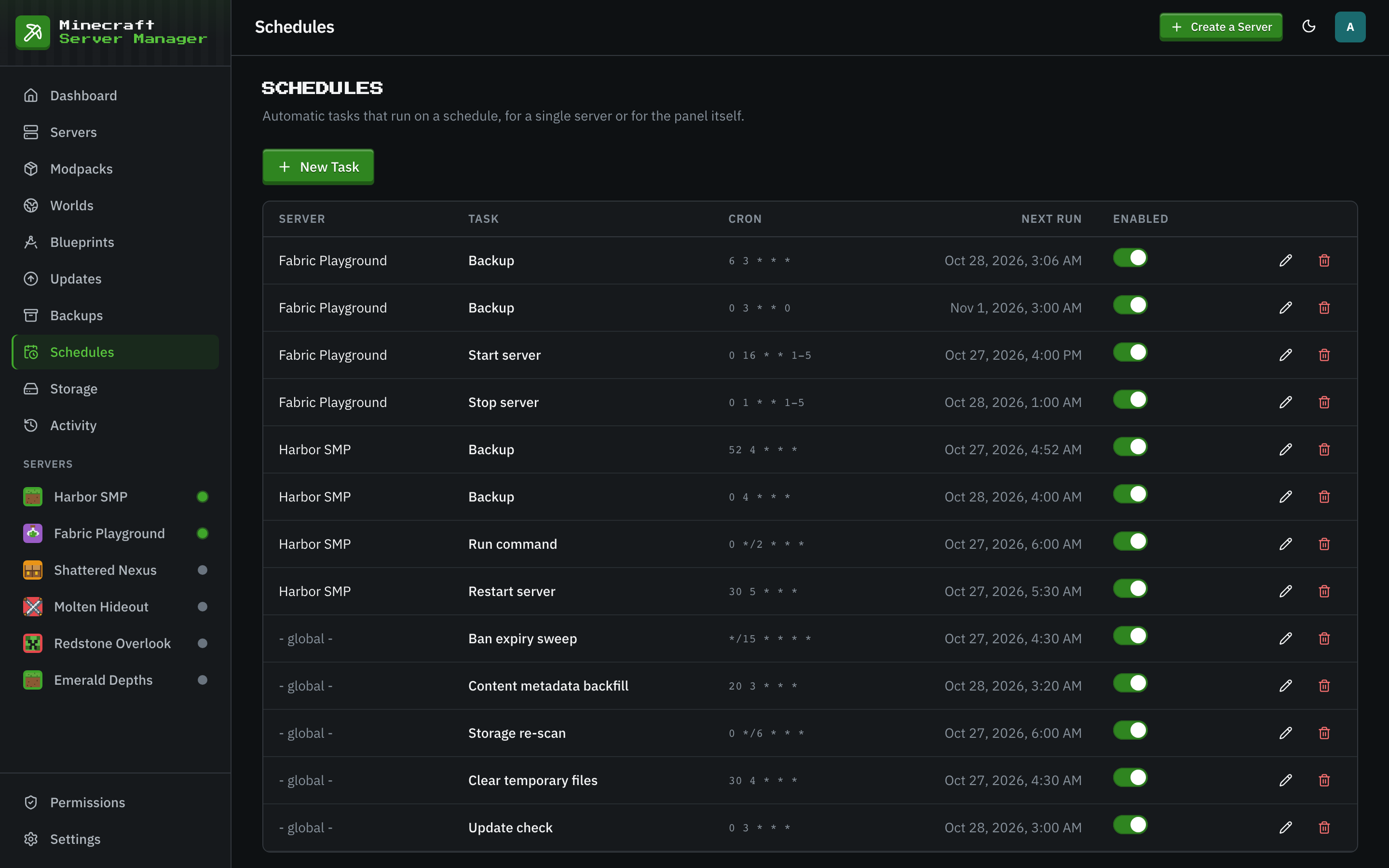
A home computer that sleeps takes your server with it, so turn off sleep on the machine that hosts it. Tick Start on Panel Boot in a server's settings and it comes back with the panel. Auto-restart on crash brings a crashed server back with growing waits between tries. Daily backups are scheduled for every new server, and schedules can restart servers at quiet hours.
Host Your First Server at Home
- 1
Install Docker
Docker Engine on Linux, or Docker Desktop on Windows and macOS. On Windows, share the drive that holds the panel with Docker Desktop.
- 2
Install and Open the Panel
Follow the Install page for your system, then open the panel in a browser. Setup checks Docker, creates your admin account, and asks for your time zone.
- 3
Create a Server
The wizard suggests a free port and memory that fits your machine. Pick a server type and press create.
- 4
Forward the Game Port
Forward the server's game port on your router, TCP and UDP, and send friends the address from the Overview tab.
Home Hosting Questions
- Can I host on the same PC I play on?
- Yes, as long as it has the memory for both. Give the server its heap plus headroom for Java, and leave enough for the game client. A vanilla server for a few friends wants about 4 GB to itself.
- Why can friends on my Wi-Fi join but friends outside cannot?
- The game port is not forwarded on your router, or a firewall blocks it. Forward the server's game port over TCP and UDP to the hosting machine, and allow it in the machine's firewall.
- Can I run the panel's Docker image on Windows or macOS?
- The container install targets Linux hosts. On Windows and macOS, run the panel from source with Node.js 24 next to Docker Desktop, which works the same once it is running.
Keep Reading
 Raspberry Pi guideTurn a Raspberry Pi 4 or 5 into a Minecraft server with a web panel, and size it honestly.
 Multi-server guideRun several Minecraft servers on one machine without ports, memory, or disk getting in each other's way.
 The unchanged gameThe unchanged game, from snapshots to old betas, with world controls, backups, and player stats around it.
Start Hosting at Home
Free, open source, and no account with anyone. Your servers live in one folder on your own machine.