Move your Minecraft server off paid hosting
Bring your world, plugins, and mods home with every inventory intact. Take stock first, copy the whole server folder, rebuild it in your own panel, and only then point players at it.
- Docker
 Paper
 Fabric
 Forge
- CurseForge packs
- Modrinth packs
Take Stock Before You Download
Write these down while the old server is still running. Every one of them has ended a migration badly when it was assumed rather than checked. Online mode matters most: if the old server ran with it off and the new one runs with it on, or the other way round, every player gets a different identity and a brand new, empty inventory.
- The exact Minecraft version and loader. 1.20.1 NeoForge is not 1.20.1 Forge.
- The mod or plugin list, with versions.
- The level-name from server.properties. The world folder is often not called world.
- Online mode, on or off.
- Anything living outside the server folder, such as a plugin's database.
Take the Whole Folder, Not Just the World
Use the host's file manager or download option and take the entire server directory. Get the plugin and mod jars themselves, not a list of names: the versions matter, and latest is a different file next month. Download your backups too. A backup that only exists inside the panel you are leaving is not a backup you own. Stop the server properly before the final download so the game flushes the world to disk.
Rebuild It in Your Own Panel
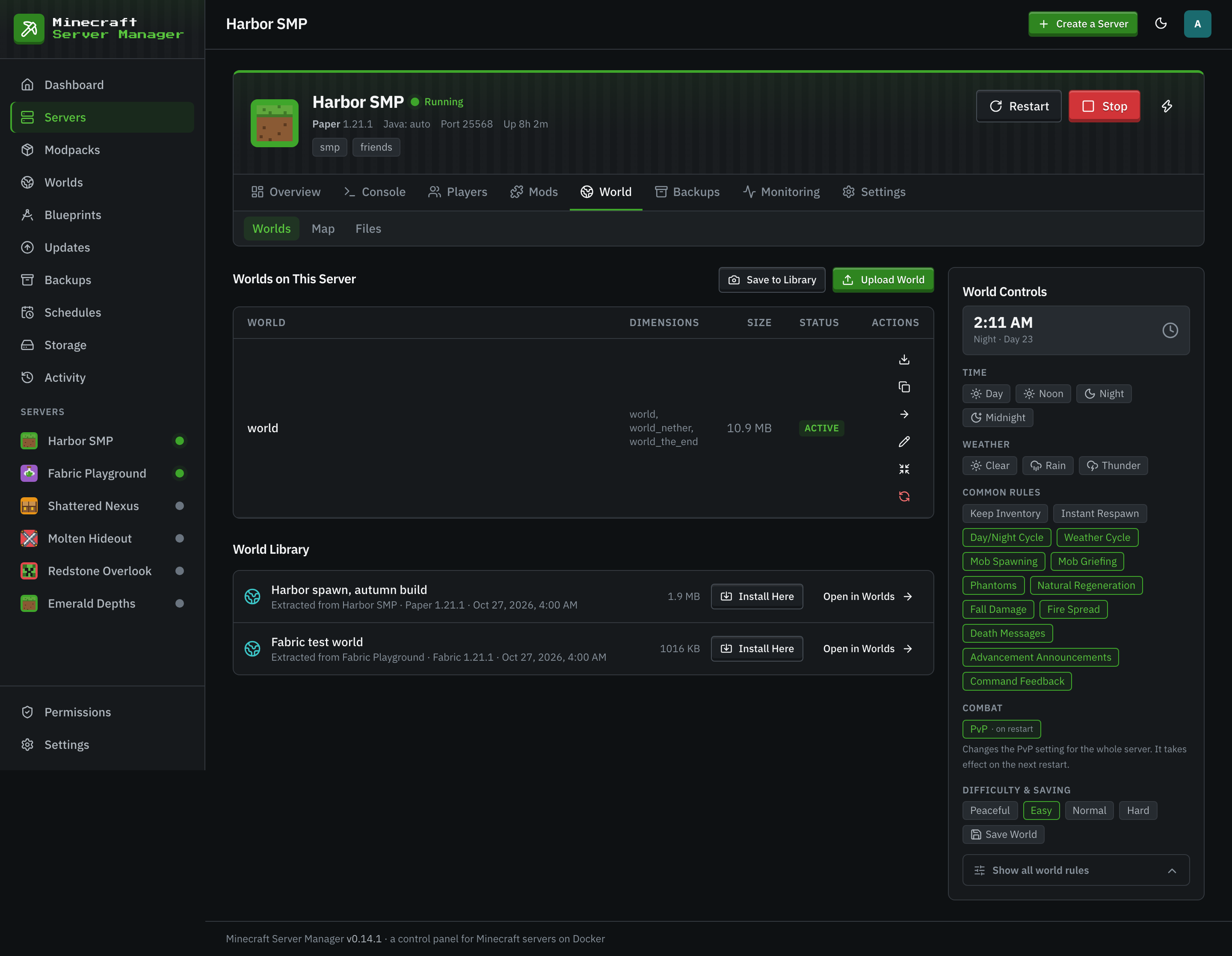
Create a server of the same type and the same exact version. Then bring the pieces in. The Worlds page takes your world as a .zip or .tar archive, finds the world inside it automatically, and installs it to the server, backing up the current one first. On a plugin or mod server, import a zip of your jars: each one is identified, judged against the server, and installed if it fits. Configs and the rest go in through the file manager, which edits and uploads right in the browser. If the old server ran a published pack, install the same pack at the same version instead.
- Upload World finds the world inside your archive.
- Import Zip identifies every jar and checks it against the server.
- The file manager handles configs, whitelist, and ops files.
 Zip of jars
- .mrpack
- CurseForge export
Keep the Address, Keep the Players
If players connect to a bare IP address, every move makes them edit their server list, and some never do. Use a hostname you control and point it at your new machine. Moving then becomes a DNS change. Lower the record's time to live a day before the switch so the change spreads quickly. An SRV record lets players type a bare domain even when the server runs on a different port, the same thing hosts do to hand out a play address.
The Switch Over, in Order
- 1
Test on a Private Port
Start the new server on a port players do not know, join it yourself, and check a base you know, your inventory, and that every plugin or mod loaded.
- 2
Final Copy
Announce a restart, stop the old server properly, download the world once more, and install that copy so the newest changes come with it.
- 3
Switch the Port and the Address
Move the server to its public port with the Game Port card, then point your hostname at the new machine.
- 4
Keep the Old One for a While
Cancel the old plan only after a few days. Keep it stopped, so nobody builds on the abandoned copy.
Migration Questions
- Will players keep their inventories?
- Yes, as long as online mode is the same on both servers and you moved the whole world folder. Player data lives inside the world, keyed by each player's identity, and that identity changes if online mode does.
- My host only lets me download the world. Is that enough?
- For vanilla, mostly. For a plugin or mod server, you also need the jars at their exact versions, because the world will not load correctly without the mods that made it. Ask your host for the full server directory.
- What does the panel replace from my host's control panel?
- The console, file manager, backups, schedules, player management, plugin and mod installs, and modpack installs, plus things hosts often charge extra for, such as more servers or more backup slots. The limit is your own hardware.
Keep Reading
 Home server guideHost a Minecraft server at home on Windows, macOS, or Linux, and let friends join safely.
 Modpack serversCurseForge, Modrinth, FTB, and GT New Horizons packs pinned to an exact version, plus your own zip or .mrpack.
 Multi-server guideRun several Minecraft servers on one machine without ports, memory, or disk getting in each other's way.
Bring Your Server Home
Install the panel, create a server that matches your old one, and upload your world. Free, open source, and yours to keep.