A Minecraft modpack server that never upgrades behind your back
Install a pack by name, pin it to an exact version, and upgrade only when you choose, with a backup first and a one-click rollback if the new version will not start.
- CurseForge packs
- Modrinth packs
 FTB
 GT New Horizons
- .mrpack
- CurseForge export
Every Big Pack Source
The Modpacks page and the wizard's From Modpack tab install packs from CurseForge and Modrinth by searching their names, FTB packs by their pack and version IDs, and GT New Horizons from its own release index. Not a published pack at all? Upload a Modrinth .mrpack, a CurseForge modpack export, or any zip of mod jars. The manifest, or a majority vote across the identified jars, fills in the loader and the Minecraft version.
- CurseForge needs an API key, added once under Settings, API Keys.
- Mods whose authors disallow automated downloads are listed with a link and an upload slot instead of failing the install.
- GT New Horizons gets its Java version and sensible memory and disk minimums set for you.
- CurseForge packs
- Modrinth packs
- FTB
- GT New Horizons
- .mrpack
- CurseForge export
- Zip of jars
Pinned to an Exact Version
When you pick a pack, the panel resolves the exact version, records it, and installs that one. A restart can never quietly upgrade the pack. You choose how each server hears about new versions: Manual Only leaves it alone entirely, Notify Me shows a badge and lists it on the Updates page, and Auto-Update applies pack updates after the daily check through the same guarded path. Updates that would move a world to a different Minecraft version are always skipped, because converting a world is your decision.
- Manual Only is the default.
- Servers tracking stable releases are never offered a beta.
- Auto-Update never crosses a Minecraft version.
Upgrades With a Way Back
Upgrading a pack is one action. The panel takes a backup, stops the server gracefully, swaps the pinned version, rebuilds the server with the right Java for the new version, and watches the first boot, with a generous window for large packs that download gigabytes on first start. If the new version does not come up, roll back with one click.
Your Own Mods on Top
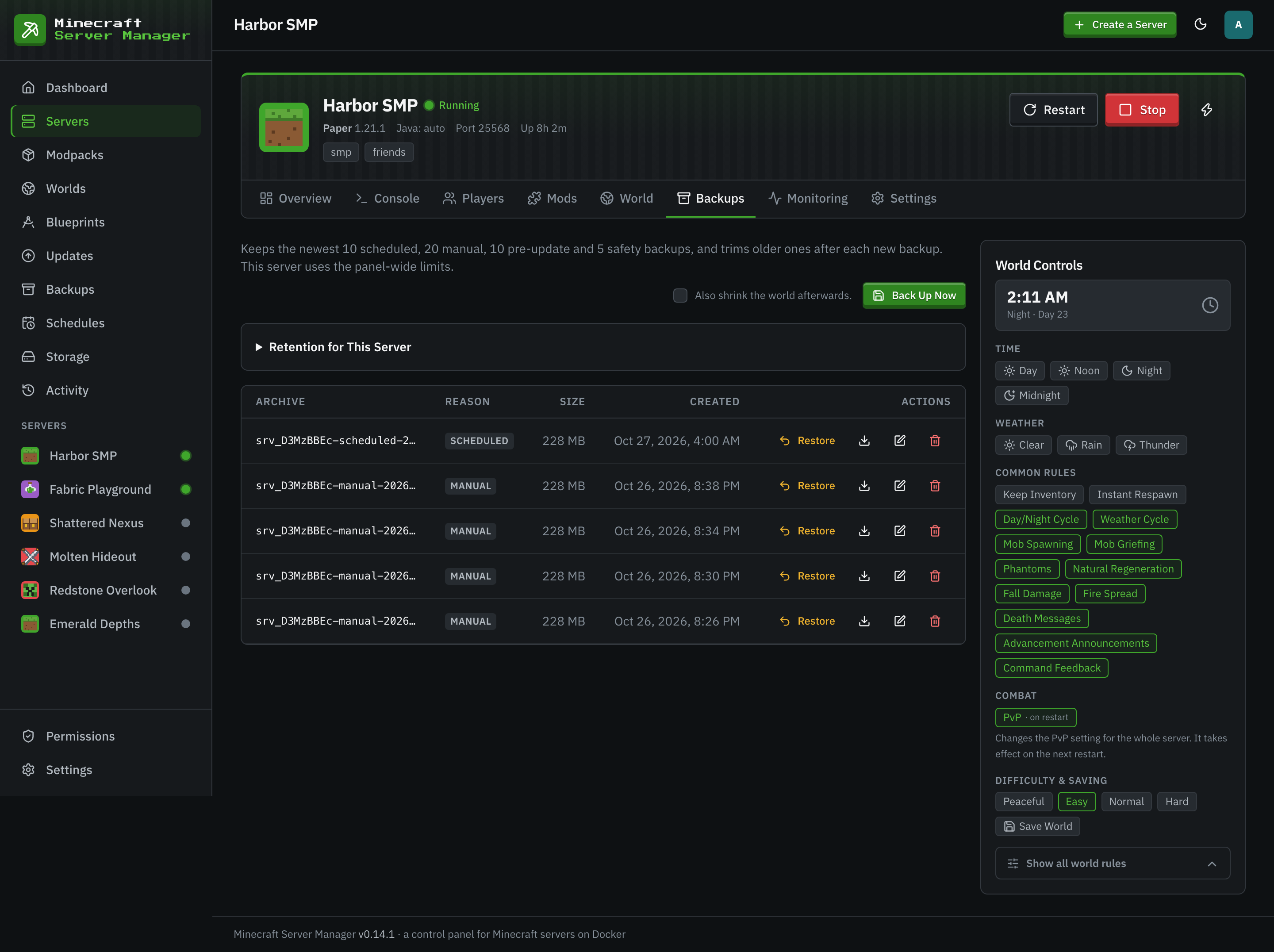
Mods you add to a pack server live in a shared library and are linked into the server, so they survive pack updates. Disable a pack mod you do not want, add a performance mod the pack lacks, and keep both through the next upgrade. Players install the same pack at the same version from CurseForge or Modrinth, and the Invites tab gives you a paste-ready invite with the address and version.
Start a Modpack Server in Three Steps
- 1
Find the Pack
Search CurseForge or Modrinth on the Modpacks page, or upload a .mrpack, a CurseForge export, or a zip of jars.
- 2
Pick the Version and Memory
Choose the exact pack version. Give the Java heap room for the mod count; the container limit follows.
- 3
Create and Watch It Boot
The panel installs the pack, pins it, and starts the server. The first start of a big pack takes a while; the console shows every line.
Modpack Server Questions
- Will restarting the server update my modpack?
- No. The pack is pinned to the exact version you installed. It only changes when you upgrade it, or after the daily check if you set the server to Auto-Update.
- Why does CurseForge need an API key when Modrinth does not?
- CurseForge only answers requests that carry a key. You can get one from the CurseForge console and add it once under Settings, API Keys. Modrinth works without one.
- Some mods in my pack could not be downloaded. What now?
- Their authors disallow automated downloads. The panel lists each one with a link to its page and an upload slot, so you download the jar in your browser and drop it in.
- Can I install an FTB pack?
- Yes, through the FTB API with the pack's numeric ID and an explicit version ID. The panel does not check FTB packs for updates yet.
Keep Reading
 Modpack server guideHost a CurseForge or Modrinth modpack for your friends, with the right memory and an invite they can follow.
 Forge and NeoForgeForge and NeoForge for heavyweight mods, from 1.7.10 classics to current packs, with the right Java picked for you.
 Fabric and QuiltFabric and Quilt servers for lightweight, fast-updating mods, with a version check before every Minecraft upgrade.
Run Your Modpack Server at Home
Install the panel, open the Modpacks page, and pick a pack. It stays on the version you chose until you say otherwise.