
Worlds & files
Worlds
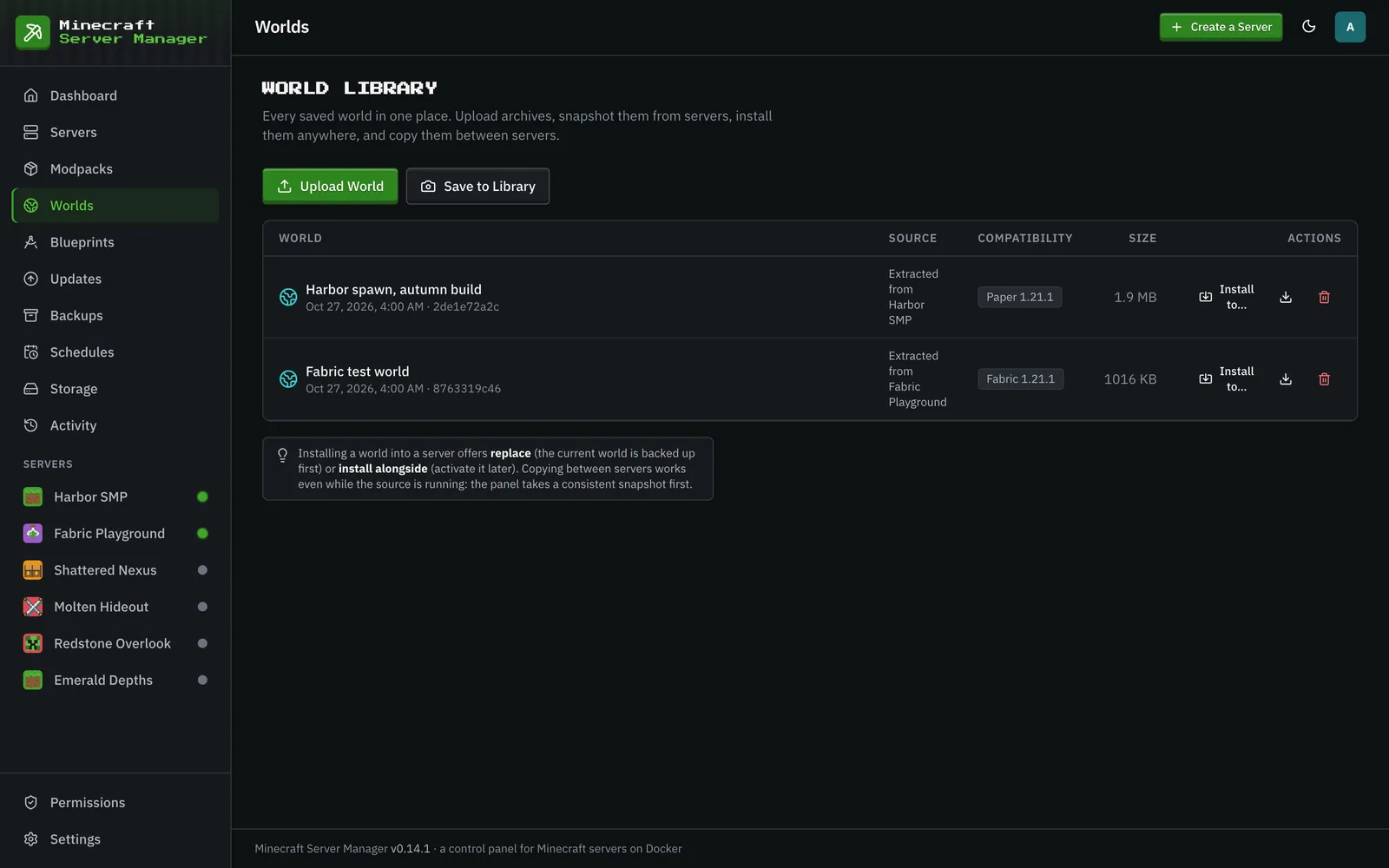
Section titled “Worlds”The Worlds page is the world library: every saved world in one place. Upload World takes a .zip or .tar archive and finds the world inside it automatically, Save to Library snapshots a server’s live world (it works while the server is running), and each library world can be downloaded or installed to any server with Install to…. Installing either replaces the server’s world (the server must be stopped, and its current world is backed up first) or adds it alongside, to activate later. A compatibility check runs before every install.
A server’s own World → Worlds tab lists the worlds on that server. From there you can activate another world (with the server stopped), download, duplicate, rename, or shrink a world, copy it to another server, delete an inactive one, and reset the active world with a new, kept, or custom seed (a safety backup is offered first). The same library sits below, with Install Here.
The file manager
Section titled “The file manager”Under a server’s World section, the Files tab is a full in-browser file manager for that server’s data directory. List, read, edit, rename, move, copy, delete, and upload files, create folders, and search the text of files under a folder with Find in Files: everything you’d normally do over SSH, from the browser.
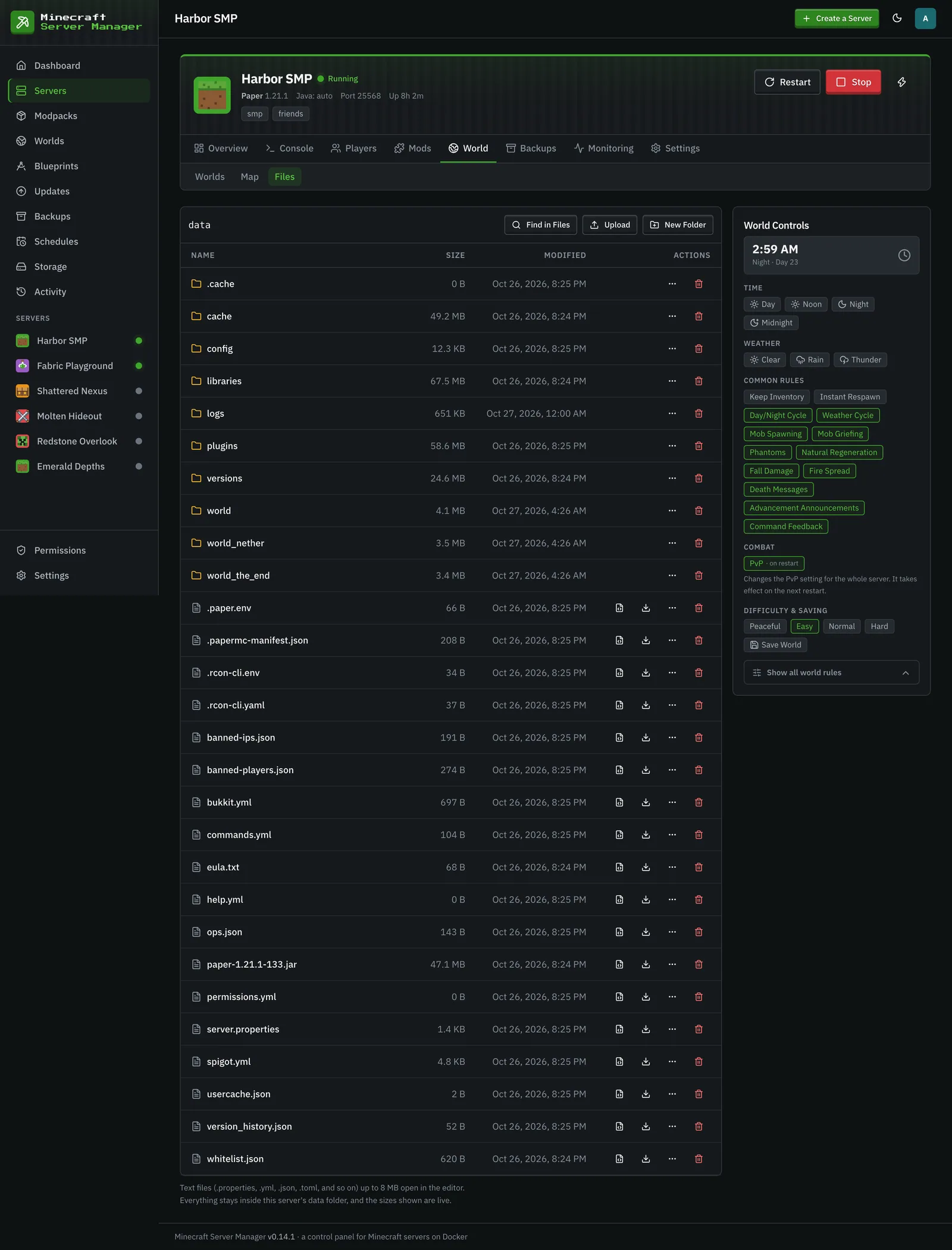
Text files open in an editor with an 8 MB limit; larger files can be downloaded. Uploads accept up to 20 files at once.
Staying inside the sandbox
Section titled “Staying inside the sandbox”Every file operation is confined to the server’s own data directory. The panel resolves each path and refuses anything that would escape: .. traversal, absolute paths, and even symlinks that point outside the directory (including dangling ones that don’t exist yet). A mod or plugin can’t plant a link to trick the file manager into reading or writing elsewhere on the host.
For modded and plugin servers, the Mods tab (its own group in the server sidebar) manages the mod set: browse and add mods, and see what’s installed. From each installed mod’s row you can update it (or ignore that update), revert it, disable it, or remove it, and Update All applies every available update with one restart. Mod and pack updates also surface on the Updates page.
Adding mods
Section titled “Adding mods”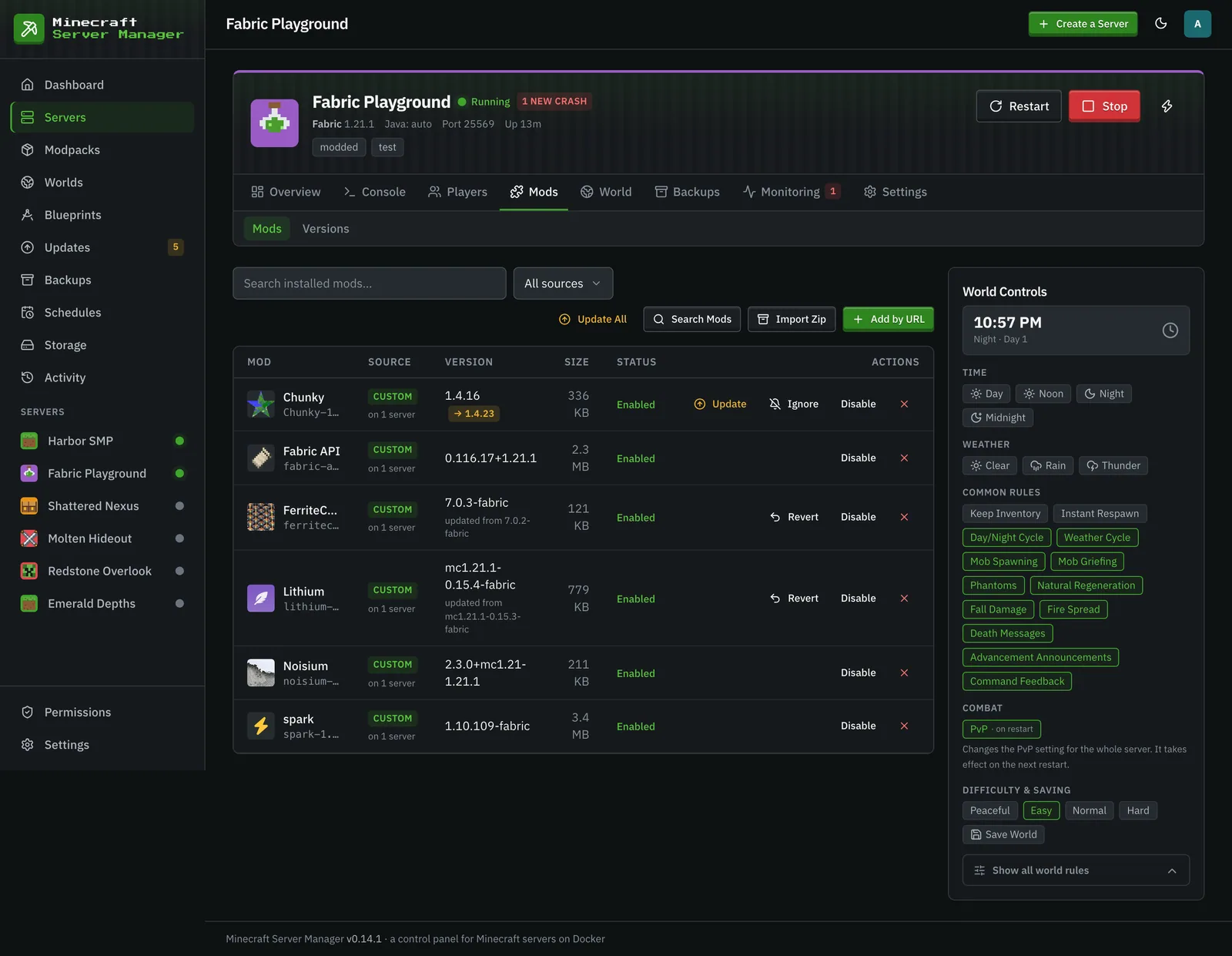
Four ways in, all from the Mods tab toolbar:
-
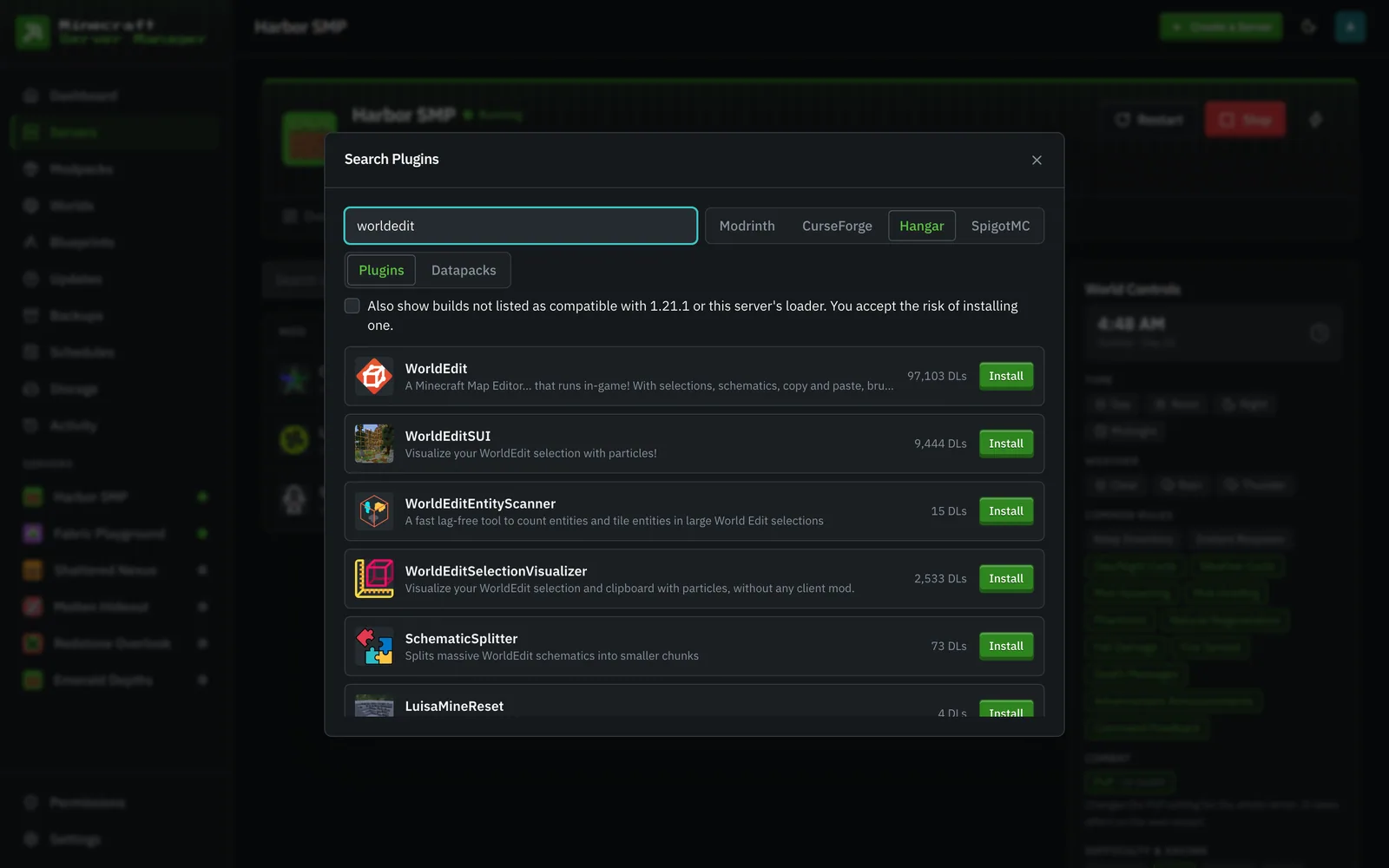
Search Mods: search Modrinth or CurseForge (the CurseForge chip appears once an API key is stored under Settings → API Keys), and on plugin servers also Hangar (PaperMC’s own plugin registry) and SpigotMC (via Spiget’s CDN proxy), both keyless. A Datapacks tab searches Modrinth’s datapacks. Everything is filtered to the server’s loader and Minecraft version (a checkbox also shows builds not listed as compatible, at your own risk); Quilt servers automatically see fabric-tagged builds too, since Quilt runs Fabric mods. Results already on the server show an Installed badge. If a CurseForge author disallows automated downloads (or a SpigotMC resource is hosted off-site), the panel says so up front and offers an Open CurseForge (or Open SpigotMC) + Upload Jar path instead of failing mid-install.
-
Import Zip: one button, three shapes, auto-detected:
-
A Modrinth modpack (
.mrpack): every pinned file is canonicalized back into its Modrinth project via hash lookup (so imported mods keep real names, icons, and stay update-checkable; files Modrinth doesn’t know install from the pack’s own URL), verified against the pack’s sha512 checksums while downloading, and previewed with fit verdicts. Client-only files are skipped visibly, and both override trees (overrides/, thenserver-overrides/; the server-specific copy wins) can be applied.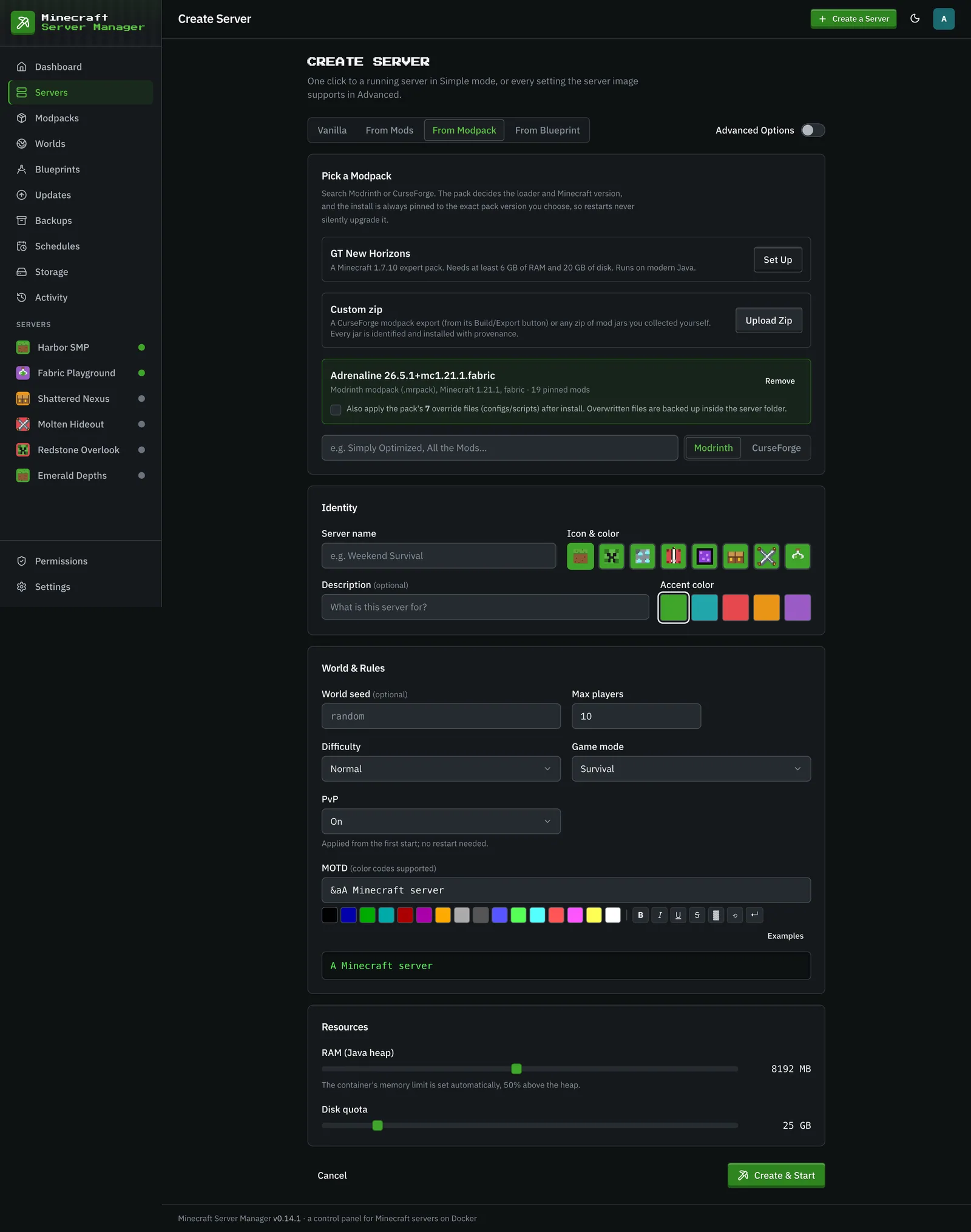
-
A CurseForge modpack export (the zip CurseForge’s app produces, with
manifest.json): every pinned mod is resolved in bulk, previewed with warnings (wrong loader/MC for this server, files no longer on CurseForge, mods that need a manual download), and installed with real progress. The pack’soverrides/(configs, scripts) can optionally be applied too; any file that would be overwritten is backed up first into.import-backups/<timestamp>/inside the server folder. -
A plain zip of jars you collected yourself: each jar is identified (Modrinth hash match → CurseForge fingerprint → the jar’s own metadata) and judged against the server (fits / wrong loader / wrong MC version / already installed / unidentified), so you pick what actually belongs before anything installs.
-
-
Add by URL: paste almost anything: Modrinth, CurseForge, Hangar, or SpigotMC project pages, a GitHub repo or release URL (a bare
owner/repoworks too; GitHub installs prefer the newest stable release and skip-sources/-javadocsidecar jars), a bare Modrinth slug, or any direct.jarURL. The panel resolves the right build for the server’s loader and MC version.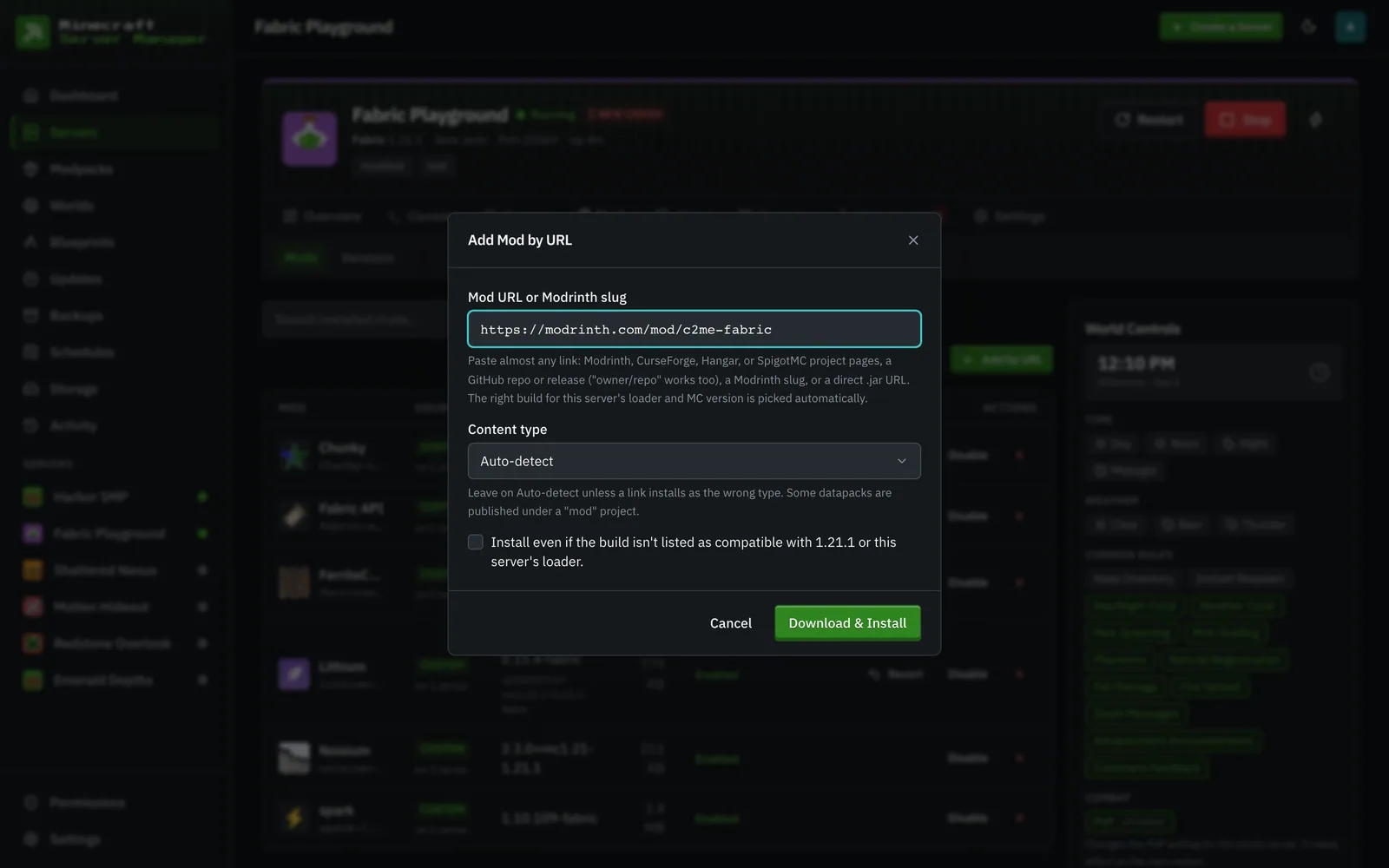
-
Upload Jar (from the search fallback or the pending-downloads resolver): uploaded jars are identified the same way, so they keep their real name, version, icon, and become update-checkable.
Every registry install is checksum-verified while it downloads: the stream is checked against the strongest digest the registry publishes (sha512 → sha256 → sha1 → md5) and a mismatch aborts before anything lands on the server.
A whole zip (.mrpack included) can also create a server: in the wizard’s From Modpack tab, upload it and the pack manifest (or a majority vote across the identified jars) fills in the loader, Minecraft version, and loader build.