
Modpacks
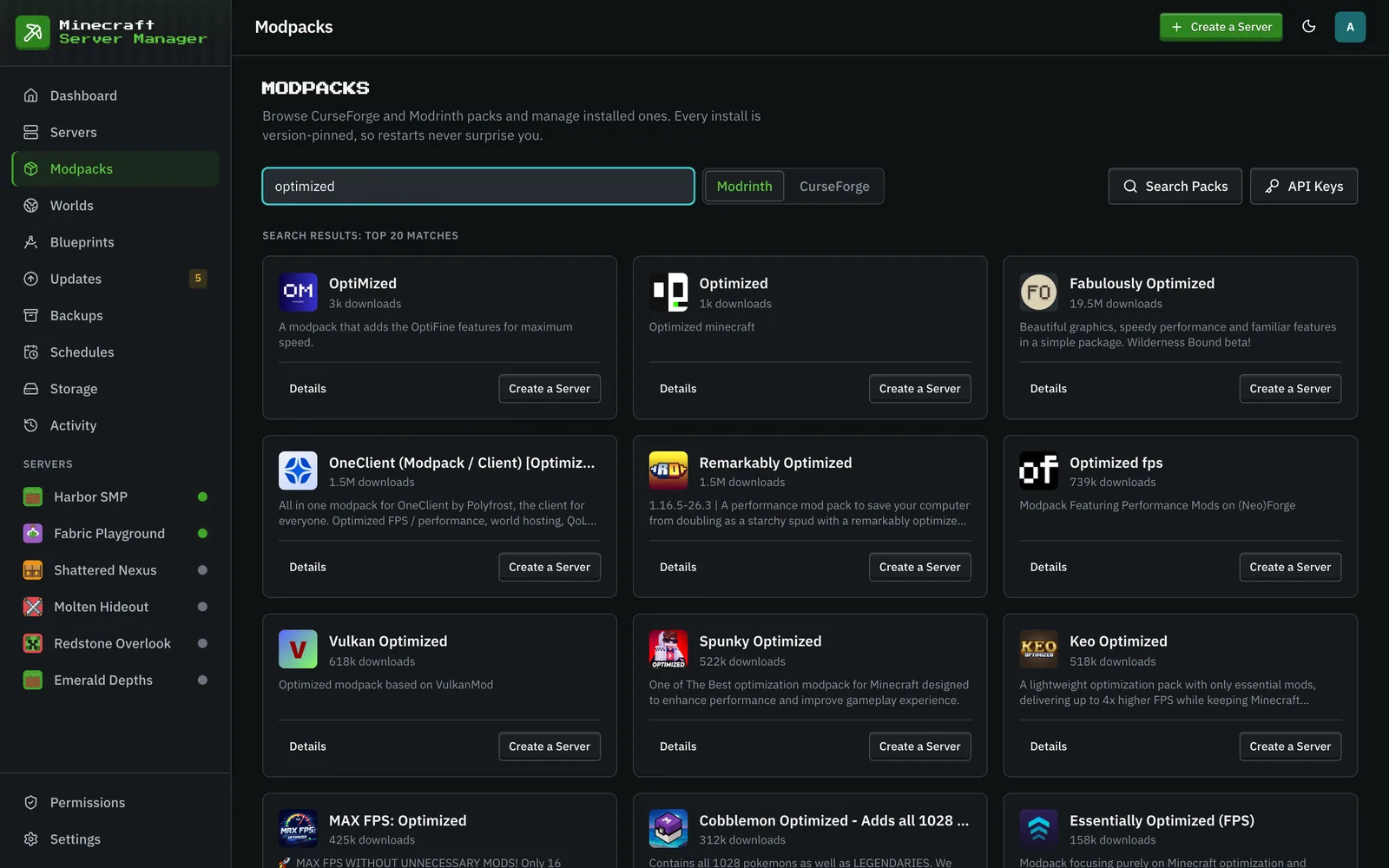
The Modpacks page (and the From Modpack tab in the creation wizard) installs a modpack as a server, always pinned to an exact pack version so a restart can never silently upgrade the pack out from under you.
Supported platforms
Section titled “Supported platforms”- CurseForge: search by name. Needs a CurseForge API key (add it under Settings → API Keys).
- Modrinth: search by name.
- FTB: Feed The Beast packs, through the API only (a numeric pack ID plus an explicit version ID). The panel does not check FTB packs for updates yet.
- GT New Horizons: the 1.7.10 expert pack, installed from GTNH’s own release index. GTNH picks its Java runtime per pack version (2.8.0+ runs on Java 25 via bundled lwjgl3ify patches, older releases on Java 21 or 17), and the wizard raises the server’s RAM and disk to sensible minimums for it.
- Custom zip: not a published pack at all. Upload a CurseForge modpack export (the zip with
manifest.jsonthat CurseForge’s app produces for a hand-picked mod set), a Modrinth.mrpack, or any zip of mod jars. The panel resolves the manifest in bulk (or identifies each jar by hash/fingerprint/metadata), previews what fits, and installs everything in one task, including the pack’soverrides/configs if you opt in. Mods whose authors disallow automated downloads are listed with a browser link and a manual-upload slot instead of failing the install.
How pinning works
Section titled “How pinning works”When you pick a pack, the panel resolves the exact version, records it, and installs that. On the Updates page you’ll be told when a newer version is available (unless the server’s update policy is Manual Only); upgrading is a deliberate, guarded action with a pre-update backup and rollback. Stable-tracking servers are never offered a beta. A server’s own Versions tab answers the other half of the question: which future Minecraft versions the mods it actually has can follow (updates).
The mod loader version comes with the pack too: the server installs the Forge, NeoForge or Fabric build the pack declares. If a Forge or Fabric CurseForge pack declares one that is too old for its own mods, the Versions tab can override it until the pack is fixed; a pack update removes the override, since the new version declares its own (changing the mod loader version).
Servers created on very old panel versions (before 0.9.7) could be left unpinned, meaning the container image would quietly install the newest pack version on every start. The panel now repairs these at boot: it locks each one to the version that is actually installed (read from the panel’s own records or the image’s install manifest, never a freshly resolved “latest”) and logs an event. If it can’t tell what’s installed, the server’s Settings page shows a warning with a Pick a Version… button (CurseForge, Modrinth and GTNH packs) that opens the version picker, and any attempt to save an unpinned modpack configuration is rejected outright.
Update policy
Section titled “Update policy”Each server has an Update Policy card on its Settings → Configuration tab, and all three options mean what they say:
- Manual Only (default): nothing ever changes on its own, and the server is left out of the update badge and Updates page entirely. The “leave me alone” mode: ideal for a hand-tuned or imported pack you never want touched. It doesn’t lock the version: Change Version… works under every policy. To be told about new versions and apply them with one click, pick Notify Me.
- Notify Me: the daily check surfaces available updates as a badge and on the Updates page; applying them is always your click.
- Auto-Update: after the scheduled daily check, pending pack updates are applied through the same guarded path as a manual upgrade: pre-update backup, health monitoring, and an automatic rollback if the new version fails to boot. Updates that would move the server to a different Minecraft version are always skipped with an event instead: converting a world permanently is a decision the panel refuses to make for you. The manual Check Now buttons only check; they never trigger auto-updates.
Upgrading a pack
Section titled “Upgrading a pack”From a pinned server you can upgrade to a newer version in one action. The panel takes a backup first, swaps the pinned version, rebuilds the server (re-resolving Java if the new version needs a different runtime), and monitors the first boot, with a generous window for large packs like GTNH that download a couple of gigabytes and build a several-hundred-mod world on first start.
Changing the pack version
Section titled “Changing the pack version”To run a specific version, newer or older, use Change Version… on the pack card of the server’s Overview tab. On the Modpacks page, opening an installed pack’s card gives the same choice: pick a version in the dropdown and click Switch to This Version. Both need the server’s Content permission, and both are available for CurseForge, Modrinth and GTNH packs (FTB packs have no version list yet). The list shows the 25 newest versions for CurseForge and Modrinth, and every GTNH release.
The switch goes through the same guarded path as an upgrade: a pre-update backup, the new pin, a rebuild and a watched first boot, with a one-click rollback if the server doesn’t come up healthy. Your custom mods are carried over, and so are the pack mods you disabled, along with the pack’s other install settings (mods forced in, files to ignore, extra projects). Installing a different pack starts those settings fresh, because they only make sense for the pack they were made for.
Each version is listed with the Minecraft version it runs, compared against the version your world was last saved by:
- Same Minecraft version: switch after a normal confirmation. Going back to an older pack version can drop blocks and items from mods that version doesn’t have, so the backup stays in the Backups tab either way.
- Newer Minecraft version: allowed after a confirmation that warns the world is converted for good. The backup taken first is the only way back to the old world.
- Older Minecraft version: unavailable. Minecraft cannot load a world on an older version than the one that last saved it, so the panel refuses rather than leaving a server that crashes on boot.