
Users & roles
The panel is multi-user. Manage accounts under Settings → Users.
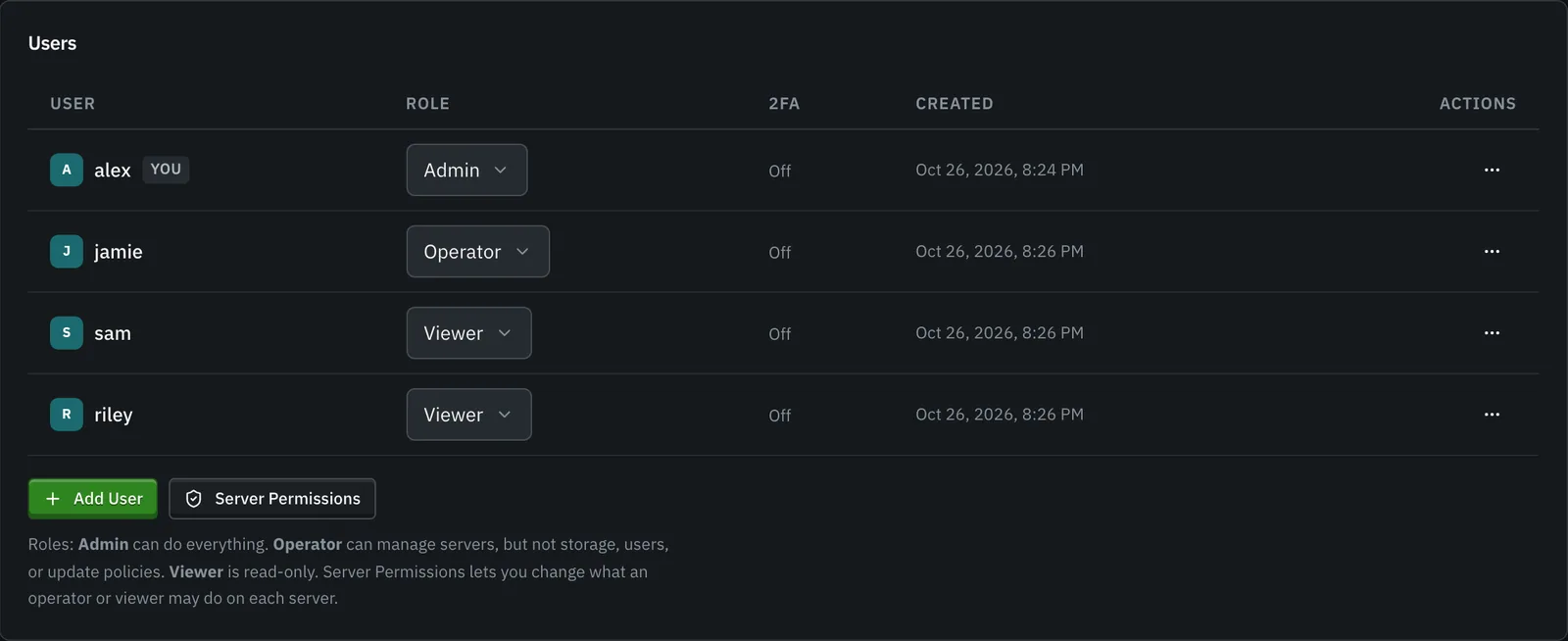
The three roles
Section titled “The three roles”| Role | Default on every server |
|---|---|
| admin | Everything: manage users, API keys, global files, advanced Docker overrides, and every server action. |
| operator | Run and configure servers (start/stop, console, backups, worlds, mods, most settings), but not admin-only areas. |
| viewer | Read-only. See servers and their status, but make no changes. |
Every user, including a viewer, can manage their own two-factor authentication, because protecting your own login isn’t a server-management action.
A role is the default for every server. To give someone different rights on one server, use per-server permissions below.
Per-server permissions
Section titled “Per-server permissions”The Permissions page (in the sidebar, or Server Permissions under Settings → Users) shows a grid: every operator and viewer down the side, every server across the top. Click a cell to decide what that user may do on that one server. Admins are not listed because they always have everything.
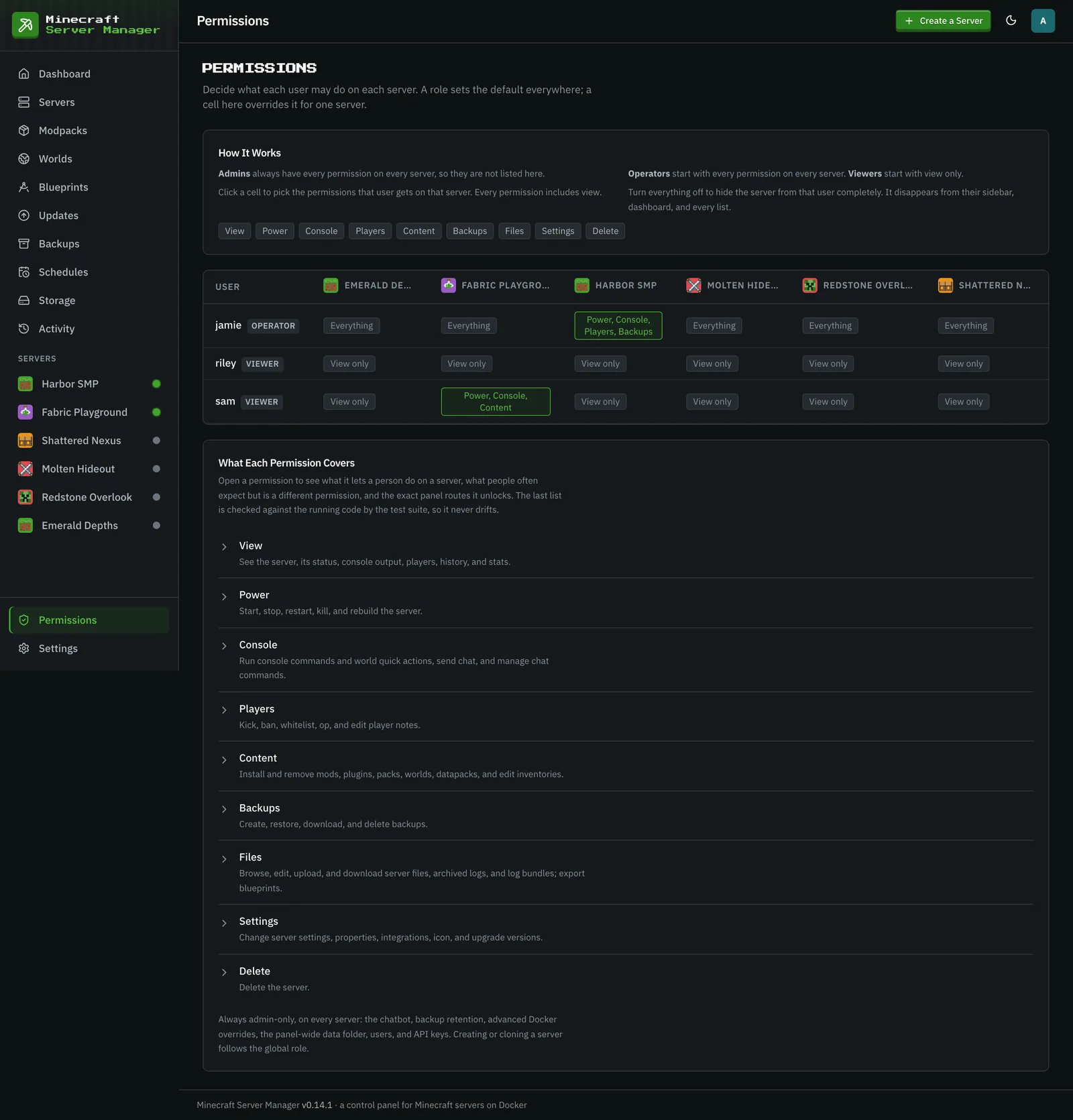
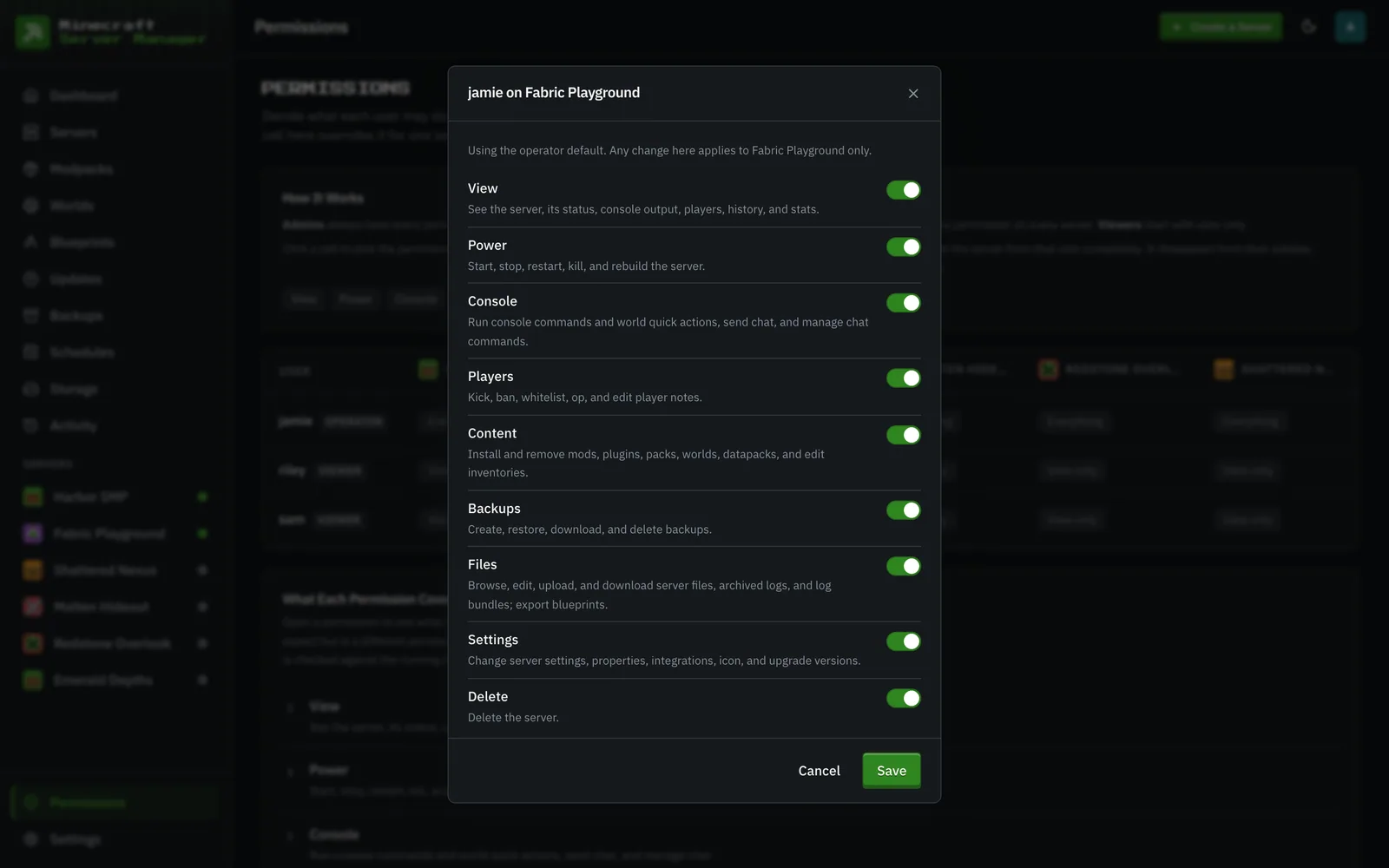
Each cell is a set of permissions:
| Permission | What it allows on that server |
|---|---|
| View | See the server, its status, console output, players, history, and stats. |
| Power | Start, stop, restart, kill, and rebuild the server. |
| Console | Run console commands and world quick actions, send chat, and manage chat commands. |
| Players | Kick, ban, whitelist, op, and edit player notes. |
| Content | Install and remove mods, plugins, packs, worlds, datapacks, and edit inventories. |
| Backups | Create, restore, download, and delete backups. |
| Files | Browse, edit, upload, and download server files, archived logs, and log bundles; export blueprints. |
| Settings | Change server settings, properties, integrations, icon, and upgrade versions. |
| Delete | Delete the server. |
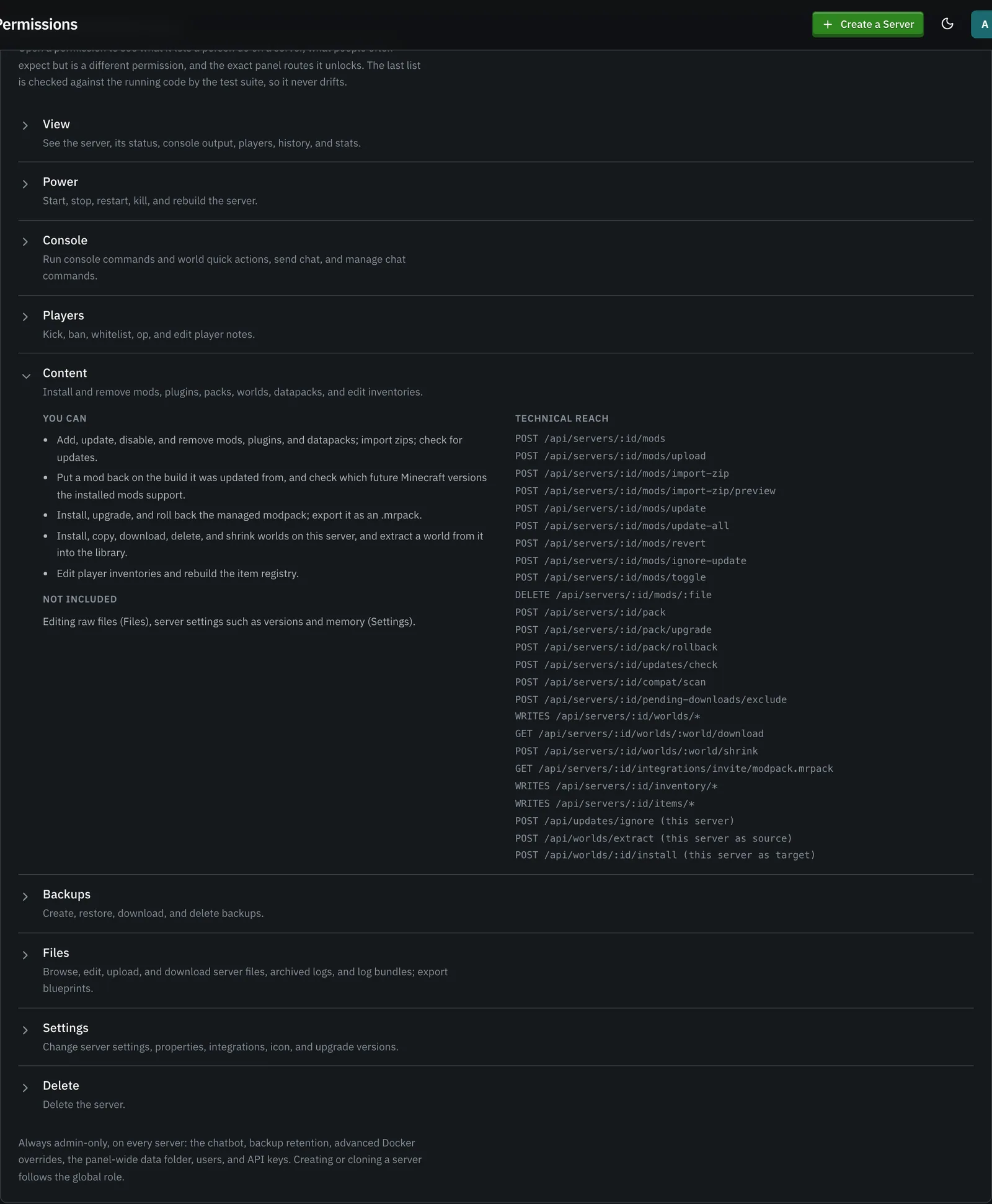
Below the grid, What Each Permission Covers opens each permission into what a person can do, what is not included, and the exact panel routes it unlocks. That last list is checked against the running code by the test suite.
On a phone the grid stacks into one card per user, with a row per server.

How the pieces fit together:
- The role is the default. An operator starts with every permission on every server; a viewer starts with View only. A cell in faint text (its tooltip says “Role default”) has never been changed.
- A cell overrides the role for that server only. Give a viewer Power and Console on one server and they can run it, while every other server stays read-only for them. Take Delete away from an operator on your main server and they keep everything else there.
- Every permission includes View. You cannot act on a server you cannot see.
- Turn everything off to hide a server. It disappears from that user’s sidebar, dashboard, backups, schedules, activity, updates, modpacks, live status, running tasks, and blueprints, and the worlds library stops naming it. A direct link, API call, or console socket answers “not found”, the same as a server that does not exist.
- Panel-wide actions still follow the role. Creating servers (including cloning one), storage, users, API keys, global settings, and panel-wide schedules are not per-server, so a viewer with permissions on some servers still cannot do any of those. Operators keep server creation and panel-wide schedules; storage, users, API keys, and global settings are admin-only.
- Schedules follow the server. A scheduled restart, backup, or command on a server needs the matching permission there (Power, Backups, or Console), whatever the role.
- Blueprints follow the server too. Exporting a server as a blueprint needs Files there, because the archive carries its files. A blueprint exported from a server someone cannot see is hidden from them as well.
- Admin-only areas stay admin-only on every server: the chatbot, backup retention, and advanced Docker overrides.
Every change is written to the activity log with who changed what; those entries are shown to admins only. Deleting a user removes their rows. Removing a server keeps them, so a server hidden from someone stays hidden in its history and kept backups.
Existing installations keep working unchanged: until an admin edits a cell, every user has exactly what their role gave them before.
Admin-only, and why
Section titled “Admin-only, and why”A few things are restricted to admins on purpose:
- User management, storage, global settings, API keys, and global files.
- The public API: enabling
/api/v1and creating, scoping, or revoking its read-only Bearer tokens. - Advanced Docker overrides: custom container name, extra port publishes, and bind mounts. A bind mount can map any host path into a container, and combined with the panel’s Docker access that’s effectively root on the host. These fields only appear for admins.
Custom container names also can’t live in the panel’s own msm- namespace, so a hand-named container can never shadow another server’s and misdirect a stop or command to the wrong instance.
Managing accounts
Section titled “Managing accounts”
Admins can create users, change roles, reset passwords, and delete accounts from the Users table. The 2FA column shows whether each user has two-factor enabled; an admin can reset another user’s 2FA with Reset 2FA in that user’s actions menu (for the lost-phone-and-backup-codes case), but never disable their own without their password, which the self-service flow handles instead.
Failed logins are rate-limited per account (both a per-IP and an account-global counter) to slow down brute-force attempts, and the same limit covers the 2FA code step so a correct password can’t reset the counter before code-guessing. In front of that sits a coarser per-client-IP request limiter on the login / 2FA / setup endpoints, tunable via RATE_LIMIT_AUTH_PER_15MIN (default 100; behind a reverse proxy, set TRUST_PROXY so it keys on the real client IP).