
Shrinking a world
Over time a world spreads out: every place a player has ever walked, flown, or been carried by an Ender pearl leaves generated chunks on disk, even if nobody ever went back. Shrink world removes the chunks that almost nobody has spent time in, so the world takes less space. Minecraft rebuilds a removed area from the world seed the moment someone travels there again, so this is safe for land nobody is using, but anything a player built in a spot they barely stood in would go too, which is why you should take a backup first (the backup is the undo).
What counts as “rarely visited”
Section titled “What counts as “rarely visited””Every chunk records how long players have spent standing in it (Minecraft calls
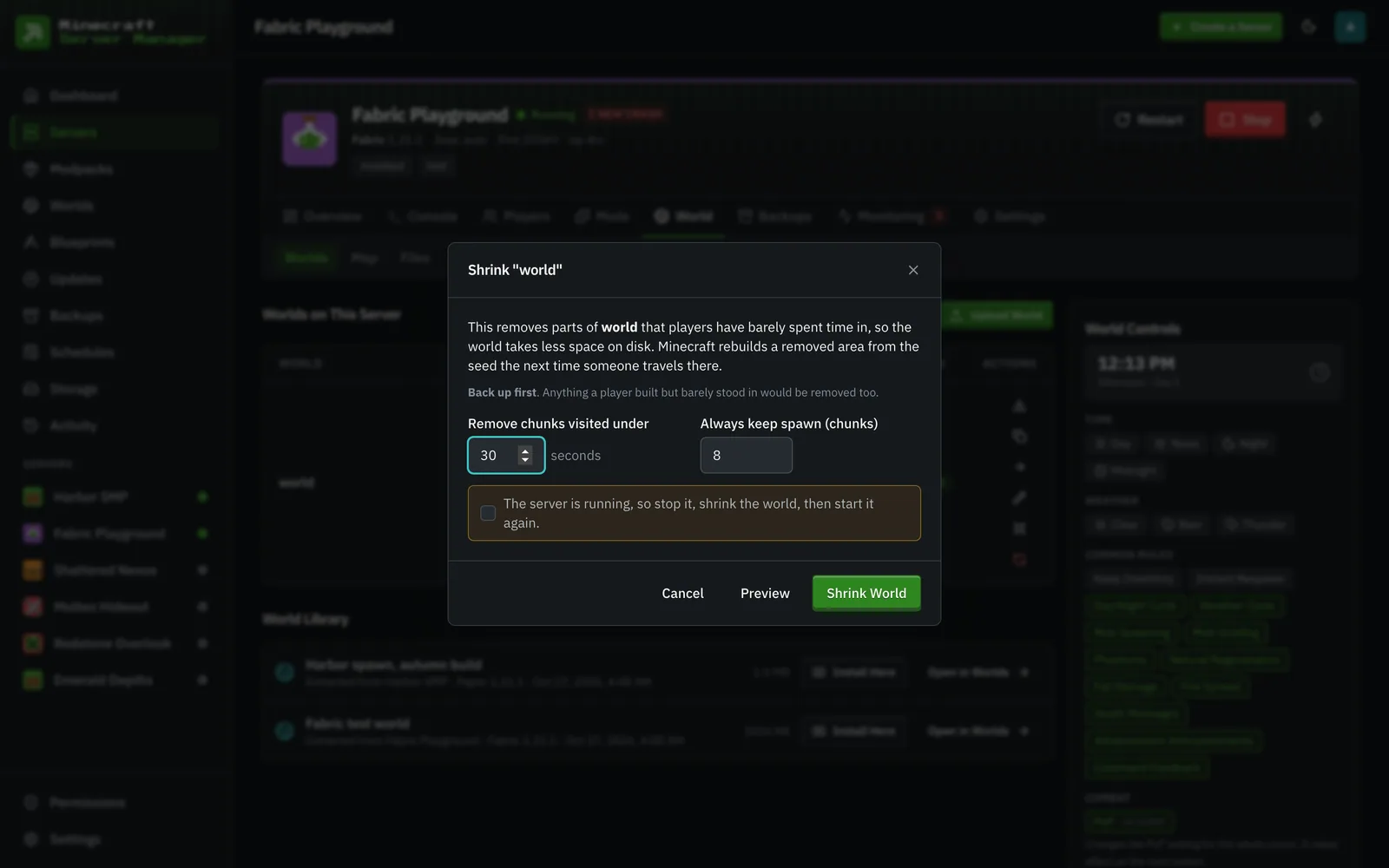
this InhabitedTime). Shrink world removes any chunk under 30 seconds of
total player time by default; the shrink dialog lets you change that threshold
(1 second to 1 hour) and how many chunks around the spawn to keep (default 8,
0 turns spawn protection off).
What is kept, always:
- The area around the world’s spawn point (read from
level.dat) in the overworld. The Nether, the End, and custom dimensions have no spawn area. - Any chunk whose visit time could not be read, for example a world saved with a compression format the panel does not decode (LZ4). The preview and the result tell you how many such chunks were skipped.
Every dimension of the world is covered: Bukkit-style sibling folders
(world_nether, world_the_end) as well as the vanilla and Forge/Fabric
layout (world/DIM-1, world/DIM1, world/dimensions/<namespace>/<name>).
When a chunk is removed, its entities and villager points of interest go with
it, so a regenerated chunk does not inherit stale mobs, minecarts, or job sites.
Doing it from the Worlds tab
Section titled “Doing it from the Worlds tab”- Take a backup from the Backups tab. Shrinking from the Worlds tab does not take one for you.
- Open World → Worlds, find the world, and click the shrink icon.
- Click Preview to see roughly how many chunks (and how many megabytes) would be removed. Nothing is changed yet; a preview works while the server is running.
- Click Shrink World. Shrinking edits the world files directly, so the server must be stopped: either stop it first, or tick the option to stop it, shrink, and start it again in one go (the server is started again even if the shrink fails). Progress shows in the task tray.
Doing it as part of a backup
Section titled “Doing it as part of a backup”On the Backups tab, tick “Also shrink the world afterwards” before Back Up Now. The backup archive is written first (that archive is your undo), then the world is shrunk, but only if the server is stopped. If the server is running, the backup still runs and the shrink is skipped with a note.
Scheduled backups have the same option: in the schedule editor, choose the Backup task and tick “Shrink the world after each backup”. Pair it with a Stop server schedule a few minutes earlier if you want it to run unattended.